Everyday work
Printing receipts
CupTrack prints non-fiscal receipts on common ESC/POS thermal printers — over Bluetooth. A receipt shows your venue name, the list of items, the total and your contact details.
Connecting a Bluetooth printer
- Turn on the printer and Bluetooth on your device.
- Pair the printer with the device in the Android Bluetooth settings.
- In the app's print settings, pick that printer from the list.
- Print a test receipt to make sure everything works.
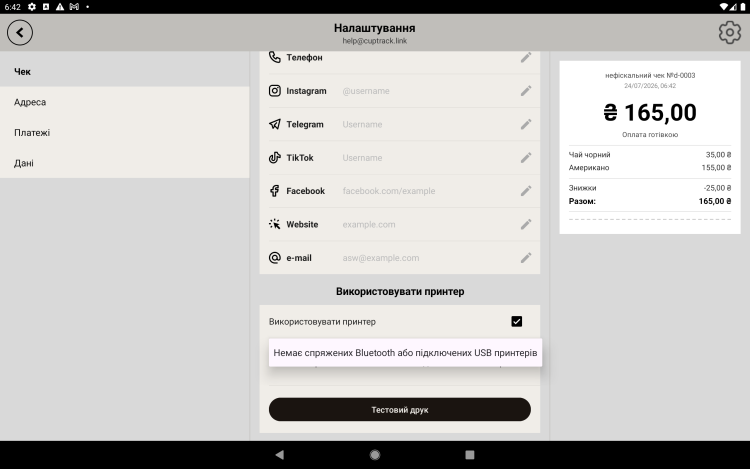
USB printer
Connect the printer with a cable (through an OTG adapter if needed). Allow the app access to the USB device — then select it for printing.
What's on the receipt
The look of the receipt is set up in "Venue settings": name, logo, address, phone and contact details. The same screen is where you set the receipt number mask and the counter.
Nothing prints? Check that the printer is on and charged, that it's paired over Bluetooth, that it has paper, and that this exact printer is selected in the app. Cheaper models are best reconnected before every shift.