The register screen
The register home screen has two parts: tabs at the top for picking items, and buttons at the bottom for moving between the app's main sections. Here's what each element does.
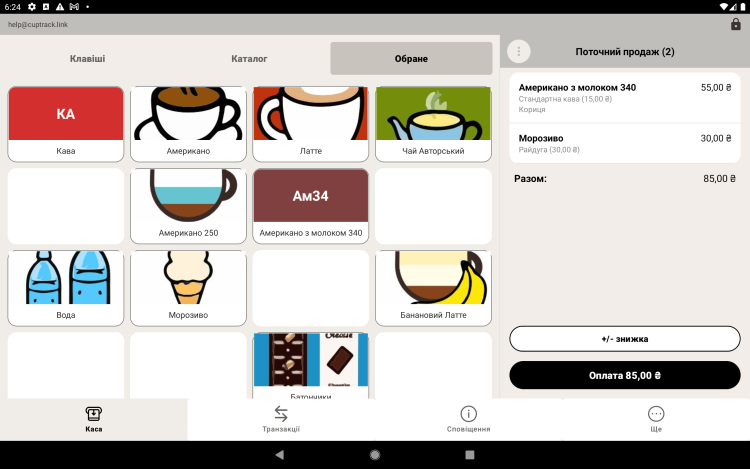
Tabs at the top
These switch how you add items to an order.
Keypad
A number pad for quickly ringing up a free-form amount or entering a quantity by hand. Handy when you need to sell something that doesn't have its own item card.
Catalog
All of your items, grouped into categories. Pick a category and you'll see its items as tiles. This is the main way to build an order.
Favorites
Your best sellers pinned for instant access — so you don't have to hunt for them in the catalog every time. A good place for your top items during the rush.
Buttons at the bottom
These switch between the app's main sections.
Register
The main working screen: the order cart, item selection, discounts and payment. This is where sales happen. See "Making a sale" for details.
Transactions
Sales history and refunds: a list of receipts with totals, payment method and time. You can open a specific sale here and issue a refund if needed.
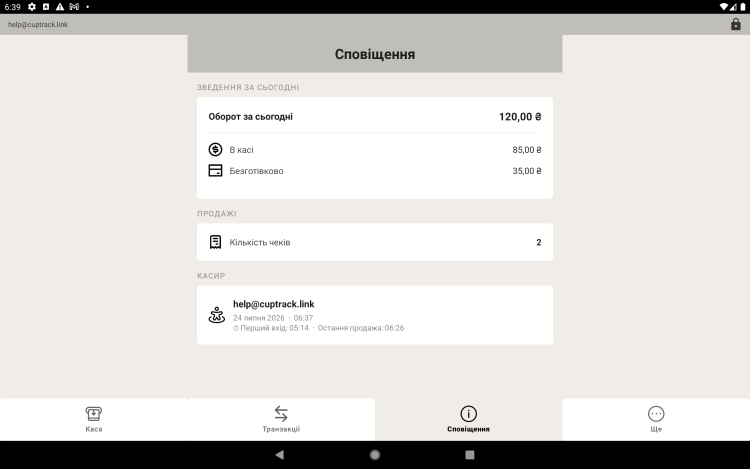
Notifications
A summary of the day's sales.
More
An extra section that opens the catalog (items, categories, ingredients, modifiers, discounts), settings, cashiers, subscription and support.