Getting started
Clearing the demo data
The demo database with sample items and ingredients is only there to help you look around. Before you start working for real, it's worth clearing it out so the samples don't end up in your reports and stock.
Another option. You don't have to delete the demo data — you can edit it to fit your venue: change the sample names, prices and stock to your own. Pick whichever is easier for you.
Where to clear the data
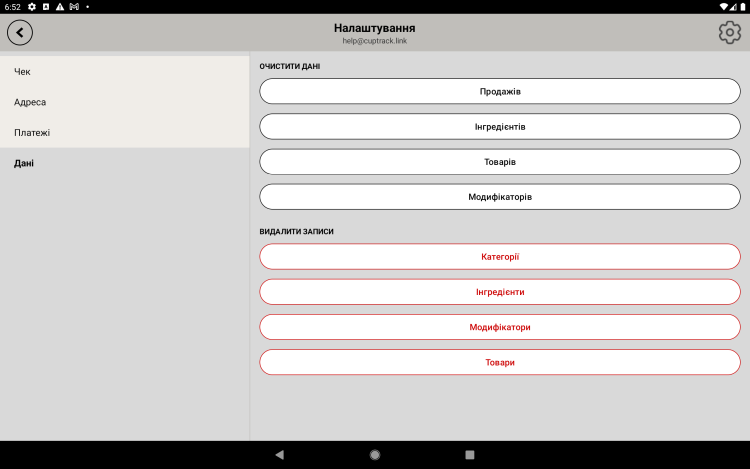
Open "More → Settings → Clear data". All the clean-up actions are gathered here. Each one asks for confirmation, and deletion is permanent.
Clearing the demo data completely
To remove the demo catalog entirely, run these one after another:
- "Delete all items" — the sample items and everything tied to them.
- "Delete all categories" — the demo categories and their links to items.
- "Delete all ingredients" — the sample supplies in stock.
- "Delete all modifiers" — the demo option sets.
- "Clear sales data → Clear everything" — if you made any test sales while trying the app out.
Careful. Clearing is permanent and syncs to the server — the data will disappear on every device at your venue. Do it deliberately, once you're really ready to start from a clean catalog.
After clearing
Now fill the database with your own entries: create categories, add items, and if you need them, ingredients and modifiers. Step-by-step guides are in the "Catalog" sections.
Tip. You can also clear the demo data from the web panel (the data section) — handy if you're building your catalog on a computer. See the "Web panel" section.